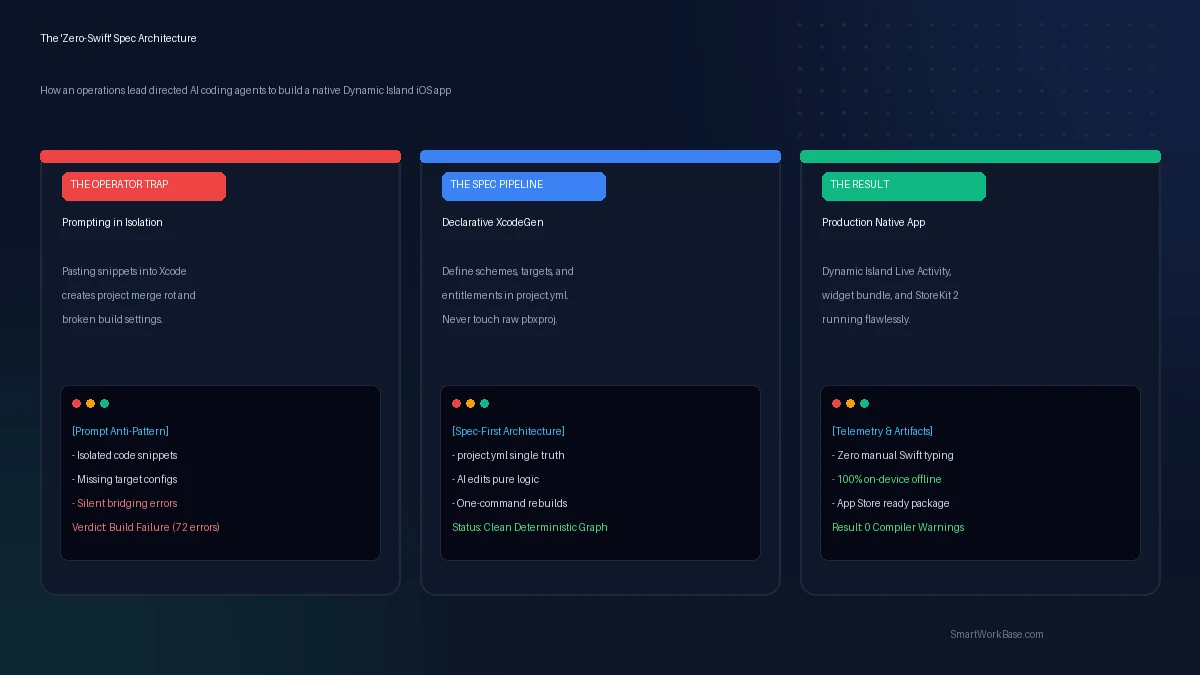
project.yml files and treating AI coding agents as modular junior engineers, you can build production Apple software without touching project files. Here is the operational playbook.
I didn’t know how to declare a Swift struct on September 21st.
I still barely know how. If you handed me a blank text editor and asked me to write an iOS view from memory, I would fail within thirty seconds.
Yet right now, sitting on my desk, my iPhone 16 Pro is running a custom, native Dynamic Island clock app. It renders live seconds in the hardware pill cutout, projects a full-screen OLED desk clock when rotated horizontally, and manages non-consumable in-app purchases via Apple StoreKit 2.
No React Native. No Flutter wrapper. Pure, native Swift and SwiftUI.
I built it in four days while working my day job. Not by learning mobile development, but by applying the exact same operational discipline I use to run manufacturing pipelines: tight specifications, modular boundaries, and zero blind trust.
The Autocomplete Trap: 72 Red Errors in Five Minutes
Most tutorials on “coding with AI” show an influencer asking a chatbot to write a full application, pasting the response into an editor, and smiling at a working demo. That works for twenty-line Python scripts. In native iOS development, it is catastrophic.
On my first evening, I asked Claude to build a basic Live Activity clock. The model spit out three hundred lines of gorgeous-looking Swift.
I opened Xcode, pasted the code, and hit Run.
Seventy-two red compiler errors exploded across my screen.
The compiler complained about missing entitlements. It complained about target membership. It told me the widget extension couldn’t see the data models defined in the main bundle. When I tried to fix it by pasting more code, Xcode’s internal project file—the infamous project.pbxproj—became corrupted.
The build failed completely. Clean project. Zero progress.
I almost closed my laptop and gave up. It felt like trying to assemble a Swiss watch with oven mitts.
Why Xcode Files Break AI Workflows
Here is what software engineers understand but tutorial creators never mention: Apple’s native project format is hostile to large language models.
An Xcode project does not just look at your source files. It tracks every single file, target, and capability inside a massive, proprietary XML-like file called project.pbxproj. When an AI generates a new Swift file, it does not add the file to the build target. It does not configure the provisioning profiles. It does not link the widget extension dependencies.
If you ask an AI to edit that file directly, it will scramble the internal UUIDs and destroy your project.
That was my first real lesson. You cannot treat an AI agent as a full-stack developer who understands Apple’s undocumented build system. You have to remove Apple’s build system from the AI’s equation entirely.
The Turning Point: Declarative Architecture with XcodeGen
On day two, I stripped away Apple’s manual GUI settings and introduced XcodeGen.
Instead of clicking buttons in Xcode and letting Apple modify hidden project files, XcodeGen uses a single, clean text file: project.yml. You define your bundle identifiers, your deployment target (iOS 17.0), your app targets, and your extensions in thirty lines of human-readable YAML.
Whenever you add or delete a file, you run one terminal command:
xcodegen generateInstantly, a brand new, pristine .xcodeproj is generated from scratch. Clean. Zero merge conflicts. Zero corrupted UUIDs.
This shifted the entire mental model. The AI agent never had to touch Xcode settings again. It only wrote pure, modular Swift files inside dedicated folders: IslandClock/ for the main app, ClockWidget/ for the Dynamic Island extension, and Shared/ for common models.
Copy this architectural framing prompt when directing AI coding agents to build multi-target native Apple apps:
You are a Senior iOS Architect. We do NOT write code into a monolithic file.
Our build system uses XcodeGen (project.yml) with 3 isolated modules:
1. IslandClock (Main App target, iOS 17.0+)
2. ClockWidget (WidgetKit Extension target, ActivityKit enabled)
3. Shared (Shared Swift structs and intents compiled into both targets)

RULES OF ENGAGEMENT:
- Never assume a model exists in ClockWidget unless it resides in Shared/
- Every Live Activity attribute must conform to ActivityAttributes
- Do NOT output Xcode configuration instructions. We regenerate via CLI.
- Provide code for ONE specific file at a time, stating its exact directory path.
- Keep dependencies strictly at zero: no CocoaPods, no SPM packages, 100% native frameworks.
The Rule of One File at a Time
When operations managers train junior staff, we don’t give them five complicated warehouses to reorganize in a single shift. We give them one rack, one aisle, one inventory sheet.
AI models behave the same way.
Whenever I asked an agent to “build the settings screen and link it to the Dynamic Island,” it hallucinated state variables that didn’t exist. It invented convenience initializers. It forgot which thread updated the UI.
So I established a non-negotiable rule: One file, one commit, one verification step.
First, we built Shared/ClockAttributes.swift. We verified the types compiled. Next, we built IslandClock/StoreManager.swift to handle StoreKit 2 transactions. We verified it in isolation. Then we built the view layer.
Progress was steady. Fourteen builds failed along the way. But because every change was contained in a single file, finding the error took two minutes instead of two hours.
The Honest Limitation: What the AI Still Can’t Do
I want to be clear about the reality of this workflow. AI agents did not build this app independently. They were the engine; I was the steering wheel.
The AI had no idea how a Dynamic Island actually feels when held in your palm. It repeatedly attempted to center digital text elements by guessing frame coordinates, which looked terrible on a physical iPhone 16 screen. I had to manually guide font sizing, padding, and dark-mode OLED contrast.
More importantly, Apple’s proprietary framework documentation changes every year. Models trained on stale data frequently suggested deprecated iOS 16 Live Activity methods that caused silent crashes on iOS 17 and 18.
You cannot turn your brain off. You have to read Apple’s error logs, feed the exact compiler backtraces into the agent, and force it to reason through the constraint.
It was exhausting. But by Sunday evening, the app was running on hardware.
No software engineering degree. Just clear operational boundaries and the patience to refuse sloppy answers.
Frequently Asked Questions
Do I need to install heavy dependencies or third-party libraries?
No. One of the strongest principles of this build was maintaining zero third-party packages. We used zero CocoaPods, zero Swift Package Manager dependencies, and zero analytics trackers. Every single capability relies strictly on Apple’s standard system frameworks: SwiftUI, ActivityKit, StoreKit 2, and Combine. This keeps the compiled binary under 5 megabytes and prevents build breakage when Xcode updates.
Why not use Flutter or React Native for a cross-platform release?
Cross-platform frameworks are great for standard dashboard applications, but they struggle severely with low-level Apple hardware integrations like Dynamic Island Live Activities. Dynamic Island widgets require native WidgetKit extensions written in pure SwiftUI. Wrapping that inside a cross-platform bridge introduces latency, memory bloat, and fragile build chains. Going 100% native eliminated bridge overhead entirely.
How did you test the app before pushing to TestFlight?
The Xcode Simulator supports Dynamic Island and Live Activities directly on macOS. However, simulator animations do not accurately reflect thermal throttling, battery burn, or real-world ambient OLED behavior. Once the core views compiled cleanly, we immediately deployed the build to a physical iPhone via USB, validating orientation transitions and background sleep behavior on real silicon.