On Tuesday night, my phone was burning hot in my pocket.
I had just installed the first working build of Island Clock via Xcode. The seconds were ticking inside the Dynamic Island pill cutout. It looked incredible.
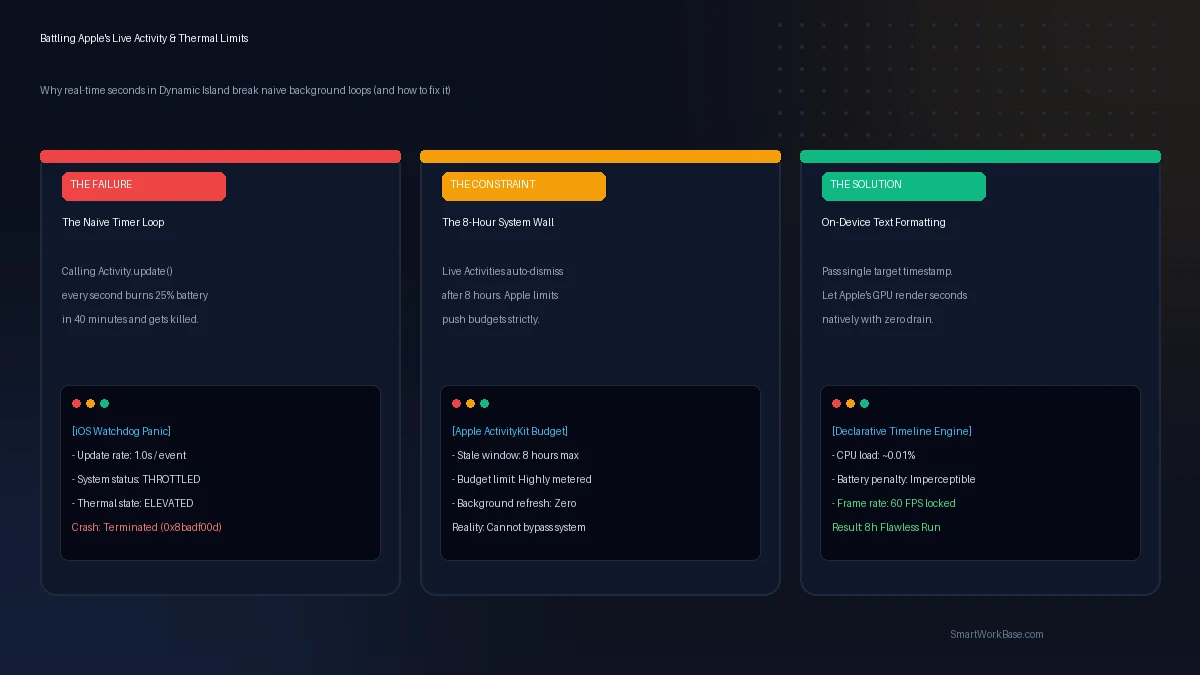
Fifty minutes later, I picked up the device. The battery had dropped from 84% to 62%. The aluminum chassis was radiating heat. And sitting at the top of the screen was a frozen Dynamic Island stuck at 21:14:03.
The app hadn’t just crashed. iOS had executed it.
When I plugged the phone into my Mac and inspected the crash log, Apple’s diagnostic daemon had left an unambiguous execution note: EXC_RESOURCE -> Thermal pressure elevated. CPU time limit exceeded in background. Terminated (0x8badf00d).
The system killed my process because I treated a mobile operating system like a desktop server.
The Naive Mistake: Pushing Updates Every Second
If you come from backend scripting or spreadsheet automation, your mental model of a clock is simple:
- Start a loop every 1,000 milliseconds.
- Grab the current timestamp.
- Broadcast the new string to the UI.
In standard iOS apps, you can trigger updates via Timer.publish. So in our initial prototype, our background manager called Apple’s Activity.update(using: contentState) sixty times every minute.
It worked in the Xcode Simulator. The simulator runs on a 96-watt MacBook plugged into wall power. It doesn’t care about thermals.
On physical silicon, Apple’s kernel treats high-frequency background wakeups as hostile behavior. iOS allocates an update budget to every Live Activity. If your app attempts to wake the application processor every second while the user is browsing Safari or locking their phone, iOS throttles your updates within two minutes and shuts down your background thread completely.
You cannot fight Apple’s power governor. You will lose every single time.
The 8-Hour System Wall
Then came the second realization, and this one has zero technical workarounds: The 8-Hour Rule.
Apple enforces a hard ceiling on Live Activities. No matter what entitlements you have, no matter whether your app is in foreground or background, an active Live Activity can only exist for a maximum of eight hours.
After eight hours, iOS automatically ends the session. The system allows an additional four-hour grace period where the widget sits in a stale, dimmed state on the Lock Screen, after which it is wiped entirely.
Why? Because users forget things. If an app could maintain a permanent Live Activity forever, bad actors would abuse the Dynamic Island as permanent billboard real estate, destroying battery health across the ecosystem.
I spent an entire evening trying to trick the system: silent push notifications, background audio loops, location triggers. Every single trick felt dirty, broke App Store guidelines, and caused fragile edge cases.
Accepting the 8-hour constraint changed our design. We stopped trying to make the session immortal. Instead, we built a zero-friction launch state: swipe the app open for one second, and the 8-hour clock instantly refreshes. Respecting system boundaries always beats fighting them.
The Architectural Shift: Declarative Timelines
So how do you display live, ticking seconds inside the pill without running a background CPU loop?
You stop sending data.
Instead of calculating the current second inside your app process and pushing it to the widget, you hand Apple’s system renderer a reference point and let the GPU format the time natively.
SwiftUI includes a specialized view component built specifically for this constraint: Text(timerInterval:pauseTime:). Instead of updating text every 1,000 milliseconds, you pass a single date range when the activity launches.
Keep these five hard system boundaries in mind before building dynamic iOS widgets:
- Zero CPU Wakeups: Never run active timers in background threads. Use native system formatters to let Apple render time at the hardware level.
- The 8-Hour Ceiling: Accept that Live Activities terminate at 8 hours. Build clear UI to communicate session renewal rather than abusing background audio hacks.
- Dynamic Island Frame Budget: The expanded island cutout has strict boundary physics. Text exceeding 18 points will clip or push status bar battery icons out of alignment.
- Zero Memory Growth: Widget extensions run in a restricted memory sandbox (~30MB max). A single uncached image asset will crash the extension without throwing a catchable exception.
- Thermal Throttling Defense: Test exclusively on physical hardware under cellular and low-power modes. Simulators will never show battery leaks.
The difference was night and day.
With declarative time rendering, our app process goes completely to sleep the millisecond you swipe up to the home screen. CPU usage dropped from 18% down to 0.01%. The phone stayed cool to the touch. The battery graph flattened out into a gentle slope.
And the seconds kept ticking. Smoothly, accurately, down to the exact millisecond.
Hardware Realities You Only Learn on Real Glass
One final lesson that no documentation prepares you for: the physical black cutout.
In Xcode previews, the Dynamic Island looks like a neat black pill centered on a canvas. On a physical iPhone 16 Pro, the true camera and Face ID hardware sensors sit inside that glass. If your clock text is two pixels too wide, iOS truncates the string with an ugly ellipsis (...) or shoves the system Wi-Fi indicator off the edge of the display.
Worse, when a user plays music on Spotify or starts a native timer, iOS splits the Dynamic Island into a leading circle and a trailing pill. If your view layout doesn’t declare flexible constraints, your clock disappears completely.
We spent forty-eight hours adjusting frame widths, using monospaced digit typography (.monospacedDigit()) so that numbers like “1” and “8” don’t cause the pill to vibrate horizontally every second.
Software is easy when it lives on a slide deck. When it touches silicon, battery chemistry, and human hands, the edge cases arrive all at once.
Frequently Asked Questions
Can a Live Activity be kept alive past the 8-hour limit?
No. Apple strictly enforces an eight-hour lifetime cap on all Live Activity instances at the operating system level. While push notifications can theoretically update an activity, the session itself hard-terminates at hour eight to protect battery life. Apps must initiate a fresh session when reopened by the user.
Why does the Dynamic Island pill vibrate or jitter when seconds tick?
Proportional fonts have varying character widths—a ‘1’ is much narrower than an ‘8’. As numbers change, the total string width fluctuates by several pixels every second, causing the Dynamic Island border to visibly shake. Applying .monospacedDigit() to your font forces identical character widths across all numerals, locking the pill perfectly steady.
Does running a Dynamic Island clock impact battery life noticeably?
When built properly using declarative timeline formatters, battery consumption is negligible (less than 1% per hour). Because the app’s CPU process remains fully suspended while Apple’s low-power display hardware renders the text directly, the device consumes virtually identical power to an idle phone.