When a sales rep asks in chat whether a 30-pack SKU has stock in the main warehouse or when the next shipment lands, opening an ERP window takes longer than answering the question. You wait for the session to wake up, click through three menu levels, and export a grid just to read one row.
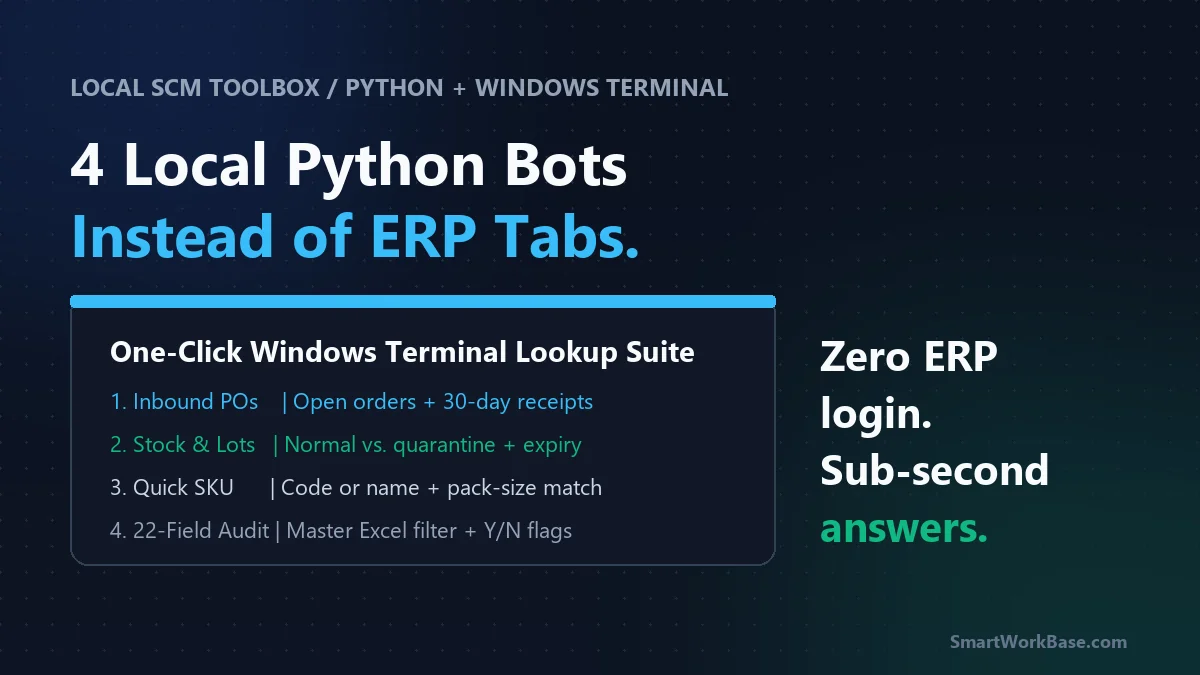
Between June and November, I replaced those repetitive lookups with four local Python terminal bots. One double-click opens my inbound, inventory, and item master tabs side by side in Windows Terminal. Everything runs offline against the Excel and CSV snapshots already sitting in our shared drive.
Four focused scripts instead of one giant menu
I split the workload into four separate scripts rather than cramming everything into a single app. Each bot reads one specific export file and answers one kind of operational question.
The inbound bot (321 lines) scans our monthly PO Excel workbooks using openpyxl in read-only mode, separating open purchase orders from deliveries received within the last 30 days. The inventory bot (407 lines) parses daily CSV snapshots and groups warehouse quantities into normal stock versus quarantine, scrap, return, or QC holds, complete with lot numbers and expiration dates.
For item master lookups, I keep two scripts. A lightweight 186-line script handles instant SKU code and product name checks, while a 360-line audit bot lets me filter across 22 master columns including EAN barcodes, manufacturer names, and creation months.
Reading open Excel files and rolling over months
Nothing breaks a local office tool faster than a locked spreadsheet or a new calendar month. If a colleague has the master workbook open, a naive script crashes or reads stale data from last month’s folder.
To prevent that, the inbound and inventory bots walk backward from the current month across the previous two months until they find the newest snapshot. They explicitly skip temporary lock files starting with ~$, so they never choke when Excel is open on my second monitor.
On November 3, we switched our inventory export from a single monthly file to daily dated CSVs. I updated the inventory bot to look for the latest six-digit date suffix first and fall back to the old monthly filename pattern only if no daily file exists yet.
Fuzzy SKU matching without an LLM
People in supply chain chat rarely type exact database strings. Someone asks “when does Probiotic 2 arrive?” when the actual item name says “Step 2 (30-pack)” with no space before the parenthesis.
Instead of calling an external AI API for simple queries, the item master bot strips conversational filler words with a regular expression and removes all whitespace before comparing strings. If someone types a name ending in a number like “Baby2”, a negative lookaround pattern checks that the digit is a real product version and not part of a pack count like 50x2.
The inventory bot also calculates East Asian character display widths using Python’s unicodedata module. Wide characters take two terminal columns instead of one, so padding strings manually keeps every table column lined up cleanly.
Write a local Python 3 terminal lookup bot for Windows that reads an Excel or CSV export from a monthly input folder.
1. Walk backward from the current YYYY-MM folder up to 2 months to find the newest file, ignoring ~$ Excel temp files.
2. Auto-detect alphanumeric SKU codes vs. text product names, stripping spaces before matching.
3. Add a clean exit command ("q") so users never see Windows "Terminate batch job (Y/N)?" prompts.
4. Provide a PowerShell + Windows Terminal (wt) command to launch multiple bots in named tabs at once.
Paste this into your favorite AI tool and swap in your own folder names and column headers.
One hidden VBScript to launch three tabs
Opening three separate Command Prompt windows every morning clutters the taskbar. Running a PowerShell launcher directly from a desktop shortcut flashes an ugly blue console window before closing.
My workaround is a four-line VBScript wrapper that launches a two-line PowerShell script in hidden window mode. That PowerShell command calls wt new-tab three times, opening the inbound, inventory, and item master bots in labeled Windows Terminal tabs with UTF-8 codepage 65001 enabled. It pairs well with the 144-line Python clipboard bot I keep pinned right next to it for formatting replies.
I also wired every bot to exit immediately when I type q (or the local keyboard character on the same physical key) instead of pressing Ctrl+C. That small habit skips the annoying Windows batch confirmation prompt every single time.
What still breaks when spreadsheets shift
These bots are fast because they assume fixed column positions. In the inbound script, purchase order number, SKU code, and receiving date sit at hardcoded column indexes starting from row five.
If someone inserts a blank column in the SAP export template next month, the script will silently misread quantities or skip rows until I open the Python file and adjust the index. Reloading a massive workbook also requires closing and reopening the tab when fresh data arrives, since the bots cache rows in memory on startup. Even with those rough edges, I still prefer pressing three keys in a terminal tab over waiting for an ERP grid to render.
Frequently asked questions
Can these Python scripts read Excel files while someone has them open?
Yes. By filtering out temporary lock files that start with ~$ and opening workbooks with openpyxl in read_only=True mode, the scripts read saved snapshots without locking out Excel users.
Why use a VBScript wrapper to run a PowerShell launcher?
Double-clicking a PowerShell script or batch file opens a brief console window before launching Windows Terminal. Calling PowerShell through WScript.Shell.Run with window style 0 hides that extra window completely.
How do I refresh data after exporting a new CSV or Excel file?
Because each script loads the snapshot into memory once on startup for sub-second searches, you simply close the tab with q and relaunch the shortcut to pick up the newest file.