Every morning around 8:30 AM, I pull three or four discrepancy rows out of our ERP grid and ask warehouse or finance leads what happened. Copy-pasting raw spreadsheet cells directly into Slack or Microsoft Teams turns the numbers into an unreadable wall of misaligned tabs.
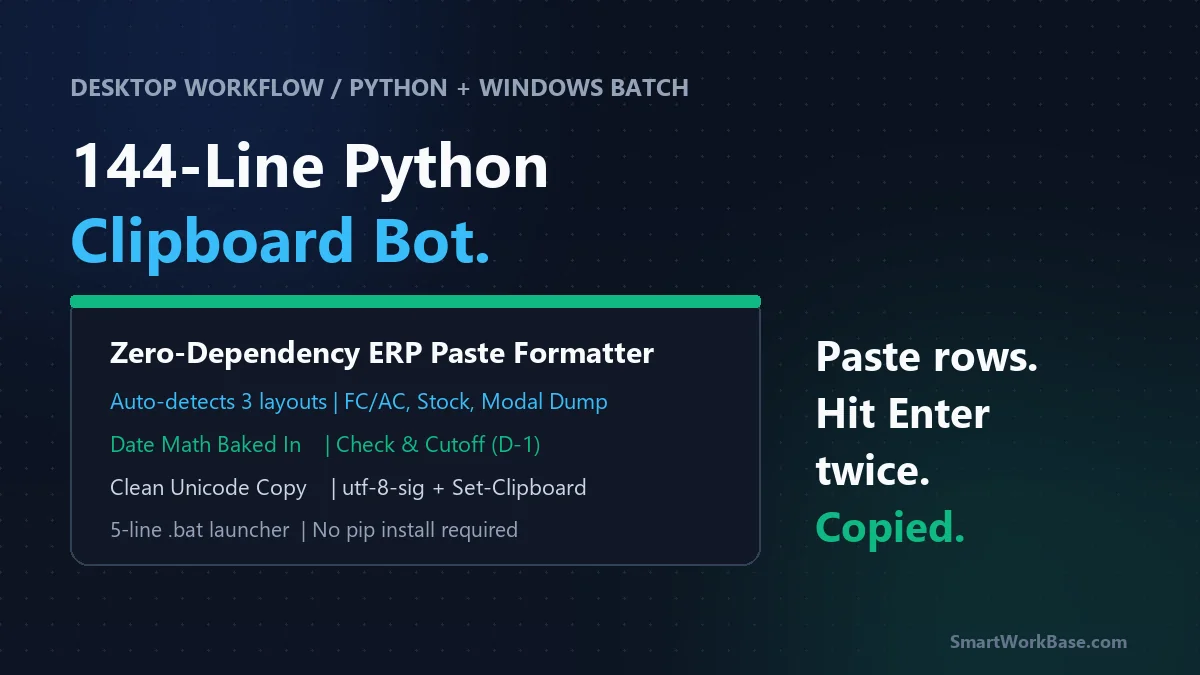
For years, I cleaned those messages up by hand. Brackets around the SKU code, commas in the quantities, a bullet list, and the cutoff date at the top. I stopped doing that on June 30 after building a 144-line Python terminal bot that formats the whole block the second I hit Enter on a blank line.
Why a terminal loop beat a web app
I could have built a browser form or a Notion template, like the lightweight desktop approach I used for my 13 ImageMagick Windows batch scripts. Opening a browser tab when I am already buried in spreadsheets just adds another place to lose focus.
Instead, a five-line .bat launcher sets the console title, switches the Windows codepage to UTF-8 with chcp 65001, and starts the Python script. I paste a block of rows, press Enter twice, and the formatted message is already sitting on my clipboard. When I am done, pressing Enter on an empty prompt closes the window.
Three layouts from one messy paste
Real supply chain data never arrives in one clean schema. My morning copy-pastes come from two different ERP exports and one web dashboard modal, so the script inspects the pasted lines and routes them automatically.
First, it checks if the top line matches a cost-center detail modal header. When you select and copy a web popup, you almost always grab the stray ✕ close-button character on the second line along with the column headers. The parser strips that stray symbol, pairs the remaining columns two per line, and appends an open prompt bullet so the recipient knows where to reply.
If the paste is not a modal dump, the script splits each line on tabs or two-plus spaces. Rows with two numeric columns become forecast-versus-actual cards with inline -- notes moved to a nested line. Everything else falls back to a stock-check card.
The Windows clipboard bug that mangled bullets
Getting the text out of Python and onto the Windows clipboard without garbling Unicode bullets (• and └) took longer than writing the parsers. Piping UTF-8 text straight into Windows clip.exe corrupts multi-byte characters on systems running a legacy local codepage.
I avoided installing third-party libraries like pyperclip by writing a tiny standard-library workaround. The script writes the finished message to a temporary file using utf-8-sig encoding, hands it to PowerShell’s Set-Clipboard cmdlet, and deletes the temp file right after.
Every block also gets an automatic header showing today’s check date and yesterday’s closing date (today - 1 day). I used to type those dates wrong at least once a week on Monday mornings. Now the script computes them before I even look at the calendar.
Write a zero-dependency Python 3 script for Windows that reads pasted multi-line blocks from stdin until an empty line is entered.
1. Detect tab-separated or multi-space columns and format each row as a clean chat card with [Code] Name, comma-formatted numbers, and bullet points.
2. Prepend today's date and yesterday's cutoff date at the top of the output.
3. Copy the result to the Windows clipboard using a UTF-8 BOM temp file and PowerShell Set-Clipboard so Unicode bullets never garble.
4. Include a 5-line .bat launcher that sets chcp 65001 and runs the script from %~dp0.
Paste this into your favorite AI tool and swap in your own ERP column names.
Where a 144-line script still breaks
This tool is brittle by design. The cost-center parser looks for an exact modal header pattern and a stray close icon, so if our internal web dashboard redesigns that popup next quarter, the script will silently drop into line-by-line fallback mode.
Spawning PowerShell to read a temp file also adds roughly 400 milliseconds of lag per paste. That delay is invisible when I am sending three morning inquiries, though it would feel sluggish if I tried to batch hundreds of blocks. I still keep the script open in a pinned taskbar shortcut every weekday because nothing else turns ugly ERP rows into readable chat messages faster.
Frequently asked questions
Do I need to install third-party Python packages for clipboard access?
No. The script uses only Python’s standard library (tempfile, subprocess, and os) paired with Windows PowerShell’s built-in Set-Clipboard command.
Why use a UTF-8 BOM temp file instead of piping directly to clip.exe?
Windows clip.exe assumes the active console codepage rather than UTF-8, which turns bullet symbols and non-ASCII text into garbled characters. Writing a temporary utf-8-sig file and reading it via PowerShell preserves every character cleanly.
How does the terminal know when I finished pasting a multi-line table?
The input loop reads lines until it hits a completely blank line. Pasting your table and pressing Enter twice triggers formatting immediately, while pressing Enter on an empty prompt exits the program.