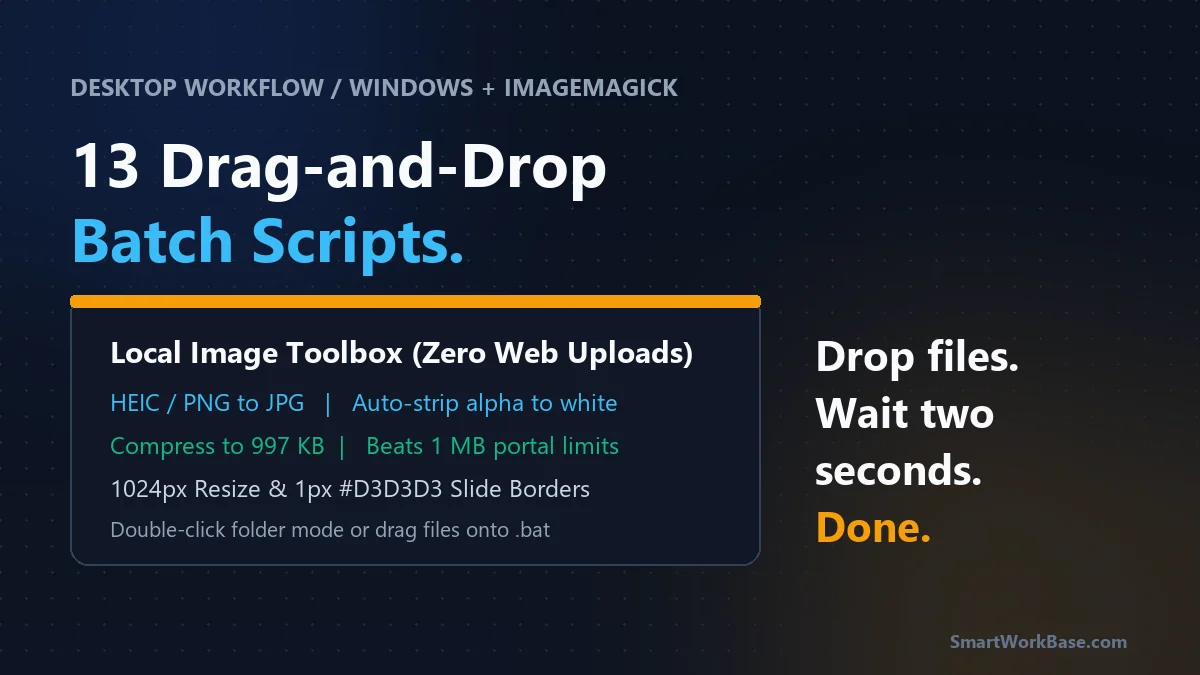
.bat file works two ways: double-click it to process every image in the current folder, or drag and drop specific files onto the icon. Zero subscriptions, zero browser tabs, and sensitive shipping photos never leave my laptop.
Every few days, someone on my team sends a batch of iPhone photos from a loading dock. Half of them arrive as .heic files that our legacy ERP portal refuses to accept. The other half are 4 MB JPEGs that hit a strict 1 MB upload wall.
For years, my reflex was to open a browser, search for a free converter, upload company photos to an unknown server, and wait through banner ads. I stopped doing that. Now I drop the files onto a .bat icon on my desktop and wait two seconds.
One folder, thirteen tiny scripts
Back in October, I started collecting small command-line fixes every time an image problem slowed down a report. By June, that folder had grown to thirteen Windows batch scripts and a single install note reminding me of the winget install ImageMagick.ImageMagick command.
None of these scripts have a graphical window or a settings menu. Each one does a single job, much like the lightweight approach I used when I replaced five paid Make.com scenarios with local desktop scripts. Double-click a script inside a folder and it loops through every matching image there. Drag five photos onto the script icon and it processes only those five.
The 997 KB trick for stubborn portals
Supplier portals and government customs forms love 1 MB file limits. If you tell an image tool to target 1000 KB, JPEG header metadata often pushes the final file to 1,012 KB, and the upload fails anyway.
My compression script targets 997kb instead using -define jpeg:extent=997kb, strips EXIF metadata with -strip, and drops the finished files into a clean compressed subfolder. I also hit a weird Windows Explorer quirk early on: if a folder path contains a comma, Explorer passes the unquoted path and cmd.exe splits it into broken arguments. Checking if exist "%~1" and falling back to "%*" fixed it, though it took an annoying afternoon to figure out why.
Fixing black PNGs and invisible borders
Converting transparent PNG product shots to JPG usually turns the transparent background solid black. Adding -background white -alpha remove -alpha off before saving flattens the transparency onto clean white. I use that script almost every week before pasting supplier diagrams into spreadsheets.
White screenshots inside white PowerPoint slides or Word memos have the opposite problem: the edges vanish into the page. One script wraps every image in a 1-pixel light gray border (#D3D3D3) and saves the result into a bordered folder. It is a tiny visual detail, yet it saves me from drawing manual boxes in PowerPoint.
🛠️ Inside My 13-Script ImageMagick Folder (Click to expand)
| Task | Core Flag / Tool | Why I Keep It |
|---|---|---|
| Portal Compression | -strip -define jpeg:extent=997kb |
Clears strict 1 MB upload limits safely |
| PNG to JPG | -background white -alpha remove -alpha off |
Prevents transparent backgrounds turning black |
| HEIC to JPG | magick "%%f" "%%~nf.jpg" |
Converts iPhone warehouse photos locally |
| 1px Slide Border | -bordercolor "#D3D3D3" -border 1x1 |
Stops white screenshots from blending into docs |
| Resize (1024px / Custom) | -resize 1024x -quality 100 |
Keeps aspect ratio; prompts for custom width |
| Rotate (90 / -90 / 180) | -auto-orient -rotate 90 |
Fixes sideways shipping label scans in place |
Where the batch scripts fall short
Not everything fits into ImageMagick alone. My EPS-to-PDF script still hunts for Ghostscript (gswin64c.exe) under Program Files because vector print proofs need a PostScript engine. If Ghostscript is missing on a fresh PC, that script just prints an error and pauses.
The rotation scripts also overwrite files in place. That is fast when I am fixing ten sideways carton photos, though I still make a copy first if the original matters. Just like building a five-button PDF viewer instead of installing bloated suites, small single-purpose tools win because you actually remember to use them.
Frequently Asked Questions
Do I need to open Command Prompt every time I use these scripts?
No. Once ImageMagick is installed and added to your Windows PATH, you just drag image files onto the .bat icon or double-click it inside a folder.
Why target 997 KB instead of 1000 KB for a 1 MB upload limit?
JPEG file headers and rounding differences between Windows and web servers can push a 1000 KB target slightly over 1,024,000 bytes. Stopping at 997 KB leaves a safe margin.
Can ImageMagick convert HEIC photos from an iPhone without extra codecs?
Yes. Standard Windows builds of ImageMagick include libheif support out of the box, so converting .heic to .jpg works offline without buying Microsoft Store extensions.