I did not set out to build a PDF editor. I just opened PDFs all day long and got tired of what was around them.
Every standard viewer I tried was stuffed with features. Menus inside menus, side panels, cloud prompts, update nags.
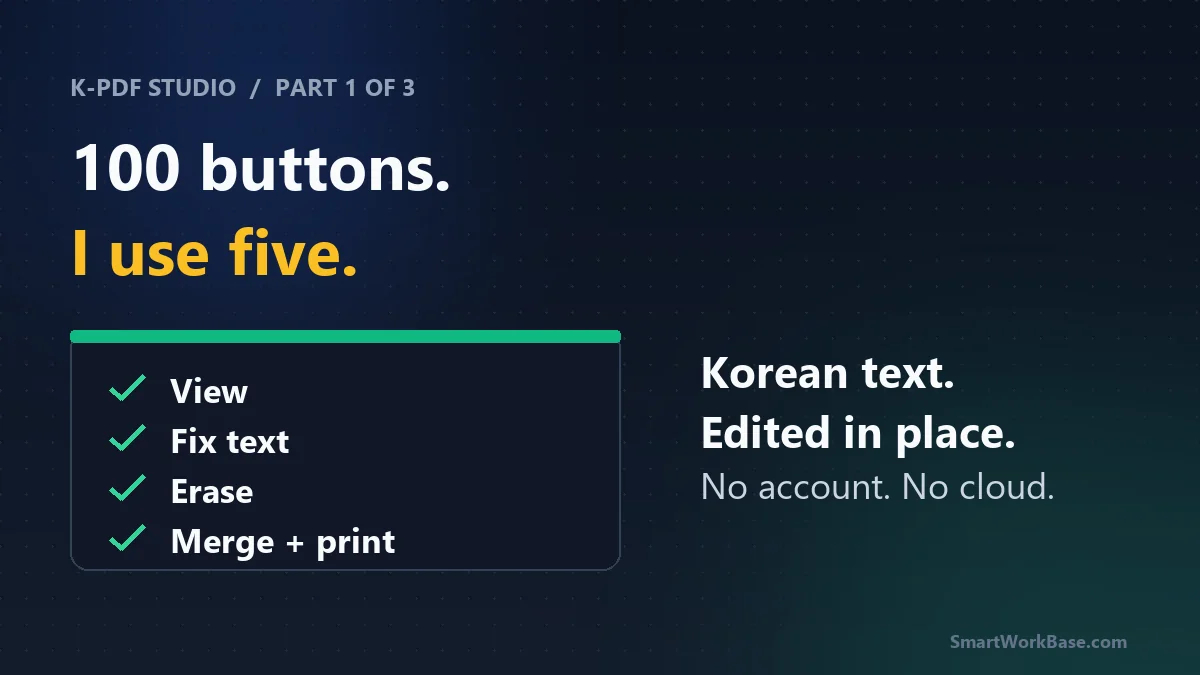
I use maybe five of those features. So I built the small version myself. It is called K-PDF Studio.
The itch: a hundred buttons, five that I use
I have worked in supply chain for 13 years. PDFs are everywhere in it. Purchase orders, delivery notes, invoices, reports someone exported flat and then found a mistake in.
My real list is short: view, fix some text, erase something, merge a few files, reorder pages, print. That is it. Everything else just sits between me and those few things.
Most of my documents are in Korean, and that is where many free tools quietly fall apart. The font changes after the edit, or the characters turn into boxes, or the line shifts left.
So the goal was narrow. A fast viewer, in-place editing that does not mangle Hangul, merge, page order, solid printing, and nothing else. No account. No cloud.
Looking inside the big one first
Before writing anything, I wanted to know how the commercial editor was put together. For that I used REA, short for Reverse Engineer Anything. It is an open-source toolkit that lets an AI agent inspect a shipped program, such as a Windows executable, an Android app or a web bundle, and report what it finds with evidence attached.
The agent does the digging, and I read the report. No hex editor, no weekend lost to a disassembler. I pointed it at the installed editor and it listed the pieces: the launcher, the large engine library, the plugin that handles text and object editing, and the Korean string table that holds every menu label.
That last file was the most useful. It showed me what a Korean user expects to see in each menu, in the exact wording they already know.
To be clear, the code is original. I used the study to decide what to build and how it should behave, not to copy anything.
The app runs on two libraries: PyQt6 for the window and PyMuPDF for the PDF work. That is the whole install. pip install PyQt6 pymupdf and you are done.
The part that matters: editing Korean text in place
Click a line of text in the PDF and a small rich-text editor opens right on top of it. You type, and the change is written back into the page.
The detail I like most is partial styling. Drag to select one word inside a sentence and change only that word: font, size, color, weight. The rest of the line stays untouched.
Under the hood each line is split into runs, small pieces that each carry their own style. When you edit, the app compares the new text against the old runs, keeps the styles that still apply, then erases the old area and writes the runs back as one clean line.
It sounds simple. It took the longest of anything in the project.
404 fonts, and the one that hid inside a collection
Korean editing lives or dies on fonts. If the replacement font is not the one the document used, everyone notices.
So the app scans every font on the PC, from the Windows fonts folder and the per-user fonts folder. On my machine that came to 404 fonts. It reads the font files directly and decodes the names, including the old Korean encoding (CP949) and UTF-16, so Hangul font names show up as real names and not question marks.
Then there are .ttc files. A single TTC is a collection with several fonts packed inside. To embed the right one, the app has to pull out that one face from the bundle. Embed the wrong face and the PDF still saves, still looks fine on your own screen, and then shows the wrong weight somewhere else.
✅ My 5-minute Korean test for any PDF editor (open me)
- Edit one word in the middle of a line, not the first word. Mid-line edits are where spacing breaks.
- Change a number and a Hangul word together. Mixed text exposes font fallback.
- Save, then open the file in a different viewer. Your editor can lie about what it saved.
- Search for the word you edited. If it is not found, the text may be a picture or a patch.
- Check the font list in document properties. It should name the font you chose.
Number three is the one people skip. I run it on every tool, mine included.
The eraser that is honestly just a white box (plus a real delete)
Some things in a PDF are not text. Logos, tables, scanned stamps. You cannot click one and press Delete.
So I added an eraser. Drag over the area and it does two things. First it removes the real text underneath, so it cannot be copied or searched later. Then it draws an opaque rectangle over everything else.
If I erase something by mistake, I select that eraser box and press Delete, and the original comes back. That undo is the part I was proudest of.
Now the question I could not shake. After I pinned the finished app to my taskbar, pressing one keyboard shortcut opened a brand new window every single time. The cause was one line of code I had added to be helpful. I will show you which line in part 2.
Frequently Asked Questions
Can you really edit Korean text inside a PDF without breaking the font?
Often yes, if the editor embeds the right font face and rewrites the line as one block. It depends on the document. Scanned pages are pictures, so there is no text to edit until you run OCR.
What do I need to run a Python PDF editor like this?
Python 3.10 or newer, plus two packages: PyQt6 and PyMuPDF. Everything else it uses ships with Python. Check each library’s license before you sell or distribute a packaged version.
Is it safe to erase text from a PDF with a white box?
Only if the text underneath is also removed. A white rectangle alone leaves the words in the file, where anyone can select and copy them. Use a real redaction step, then confirm by searching for the word.