Every post on this site needs 2-3 images, and every one of those images eventually needs a clean background removed — a screenshot cropped, a product shot isolated, a logo cleaned up. I’d been doing this by hand in an image editor for weeks before it occurred to me that this is exactly the kind of repetitive task AI tools are supposed to be good at.
So instead of just picking whatever’s ranked #1 on some other blog, I ran four tools against the actual images I needed for this site over five real working days — about 200 images total, not a curated test batch.
✅ Just a few clean, single-subject photos → remove.bg
✅ Already doing design work in Canva → Canva Magic Studio
✅ Cluttered backgrounds or batch processing dozens of files → PhotoRoom
✅ Already working inside the Adobe ecosystem → Adobe Express
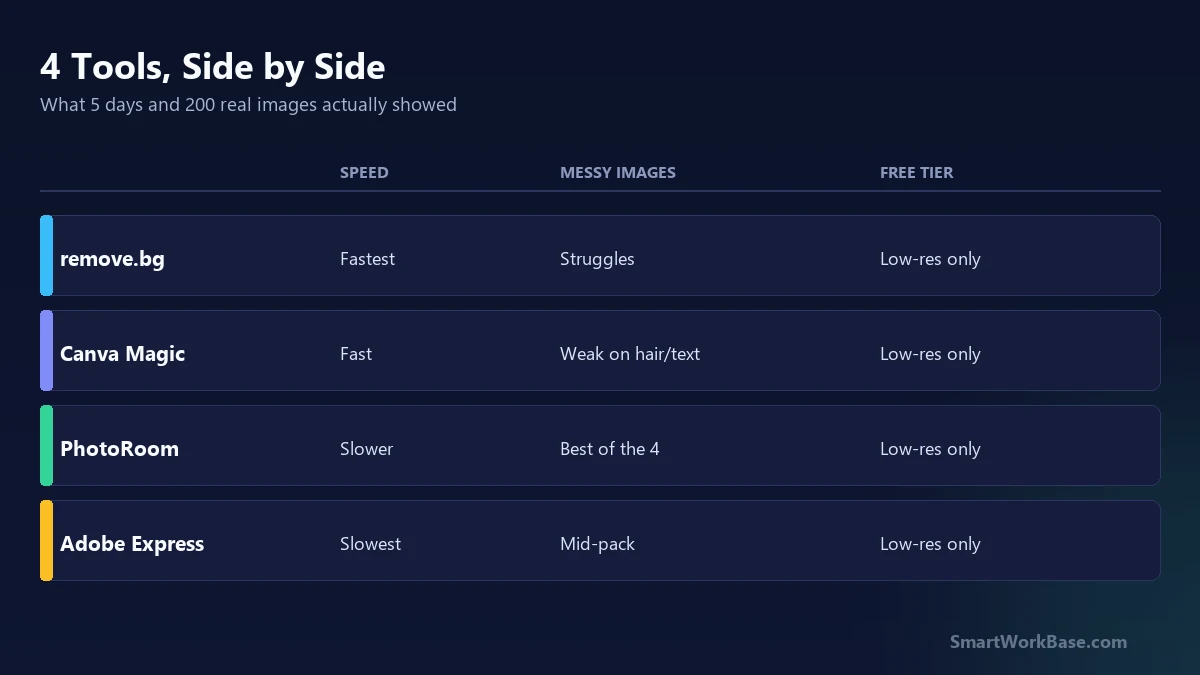
✅ Need full original resolution → All four limit free tiers to low-res; paid plan required
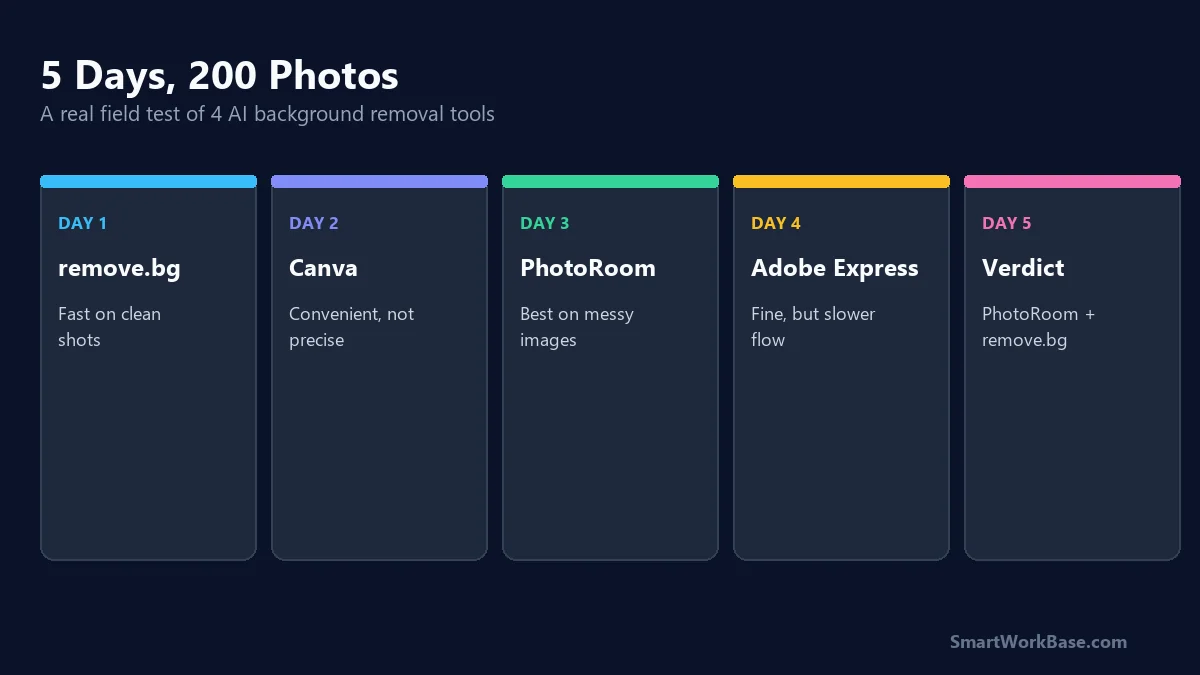
Day 1 — remove.bg, the default everyone recommends
remove.bg is the tool everyone points to first, and on day one I understood why. Clean product-style photos, one subject, decent contrast against the background — it nailed those in about two seconds each, no adjustments needed. The free tier caps you at low resolution, though, and for a couple of hero images I needed full size, which meant paying per-image or subscribing.
Day 2 — Canva Magic Studio, because I already had it open
I already use Canva for other parts of this site, so testing its background remover cost me nothing extra. It’s built into the same editor, which is genuinely convenient — no exporting and re-importing. Quality was close to remove.bg on simple images, but it struggled more on anything with fine detail like hair or thin text overlays. Fine for quick social graphics, not what I’d trust for a hero image.
Day 3 — PhotoRoom, tested on the messy stuff
Day three I deliberately fed it my worst images: screenshots with UI chrome around the subject, low-contrast edges, a couple of images where the “subject” wasn’t obvious. PhotoRoom handled the messy batch noticeably better than the first two — it seemed to actually reason about what the subject was rather than just cutting on a color-contrast edge. It also has a batch mode, which mattered once I had 40 images to process in one sitting.
Day 4 — Adobe Express, the one I wanted to like more
Adobe Express‘s background remover sits inside a much bigger editor, and honestly the extraction quality was fine — right in the middle of the pack. What slowed me down was everything around it: more clicks to get to the same result, a heavier interface for a task I wanted to be fast. If you’re already living inside Adobe’s tools for other reasons, it’s there. I wasn’t, so it didn’t earn a permanent spot in my workflow.
Day 5 — what I actually kept using
By day five the pattern was obvious: PhotoRoom for anything messy or batch-heavy, remove.bg for quick one-off clean shots when I don’t need the highest resolution. Canva stays in rotation only because it’s already open when I’m doing other design work — not because it’s the best at this specific job.
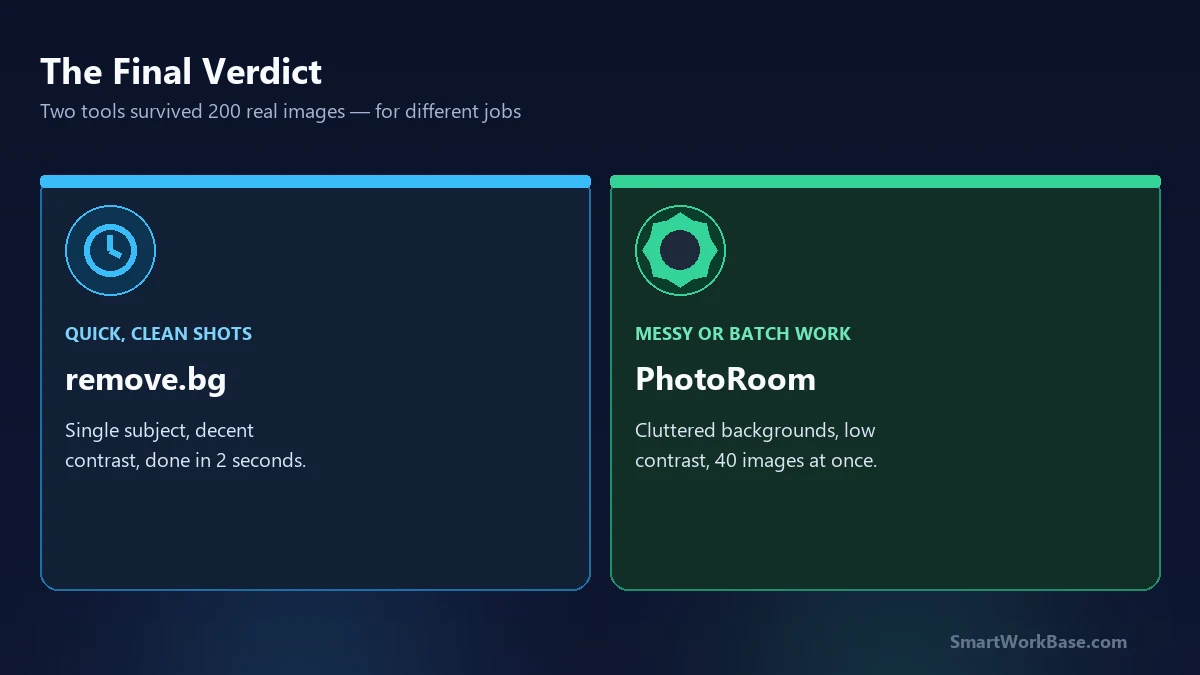
None of the four is dramatically better at the easy 80% of images. The gap only shows up on the hard 20% — low contrast, fine detail, cluttered backgrounds — and that’s where PhotoRoom pulled ahead for me.
(If you’re curious what I actually use these images for once they’re cleaned up, I wrote about the repurposing pipeline here.)