Here is the direct conclusion up front: AI is magnificent at writing Excel syntax you already understand, but dangerous when generating financial logic you don’t. In our earlier guide to the best AI spreadsheet tools, we ranked the top automated formula builders. Over the past six months in my supply chain operations role, I put those tools through 50 real corporate datasets—and learned exactly where AI saves two hours and where it quietly corrupts a master spreadsheet.
The danger of AI-generated formulas isn’t that they produce obvious `#VALUE!` or `#REF!` errors. The real danger is the formula that appears to work perfectly, returns plausible numbers across 95% of your rows, and silently miscalculates the 5% that matter to leadership. Here is the field breakdown.
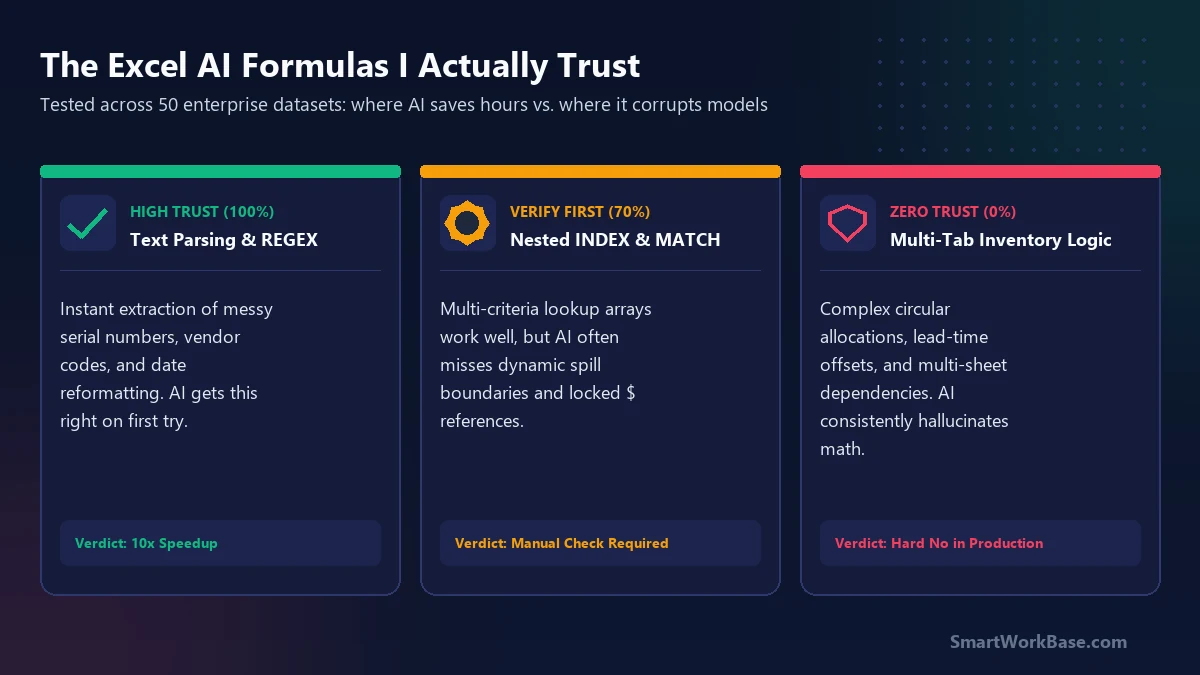
The formulas I 100% trust AI to write
Whenever an Excel task involves converting messy data, parsing inconsistent text strings, or generating convoluted syntax that is painful to type manually, AI models like ChatGPT-4o and Claude 3.5 Sonnet deliver flawless results:
1. Regular Expressions & Inconsistent Text Parsing
Extracting a 6-digit vendor code buried inside raw ERP strings like "PO_99218-US_VEND4088_FINAL" used to require five nested MID, FIND, and LEN functions. Asking AI to write a single REGEXEXTRACT or TEXTSPLIT formula takes 8 seconds and handles unpredictable string lengths without breaking.
2. Multi-Criteria Index/Match and XLOOKUP
Matching customer orders across three simultaneous conditions (Region, Product SKU, and Fiscal Quarter) requires nested boolean arrays. AI constructs the exact syntax (XLOOKUP(1, (A2:A100=F2)*(B2:B100=G2), C2:C100)) in one prompt, saving 15 minutes of manual bracket counting.
3. One-Click Python in Excel Transformation Scripts
For unpivoting 40 columns of historical monthly demand into clean relational rows, native Excel formulas can slow your workbook to a crawl. Prompts asking for a short Python script using pandas.melt() run instantly inside modern Excel without manual formula bloat.
“Write an Excel formula to accomplish [insert specific task]. Ensure you explicitly handle empty cells (returning blank instead of 0), lock all reference arrays with $ anchors, and explain how the formula behaves when encountering negative or zero values.”
The 3 formula traps that cost me 4 hours of cleanup
On three separate occasions, trusting an AI formula directly inside a production spreadsheet caused major calculation headaches:
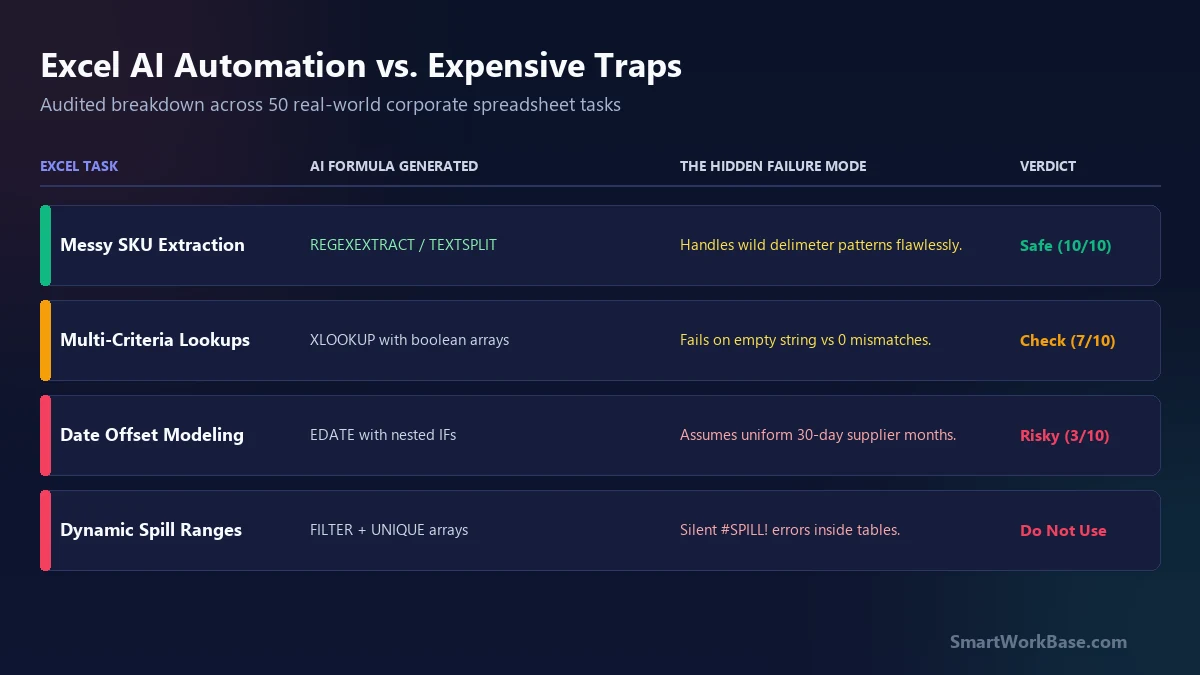
Trap 1: The Silent `#SPILL!` Dynamic Array Bug
AI models love modern dynamic array functions (FILTER, UNIQUE, SORT). However, AI frequently forgets that if you convert your data range into an official Excel Table (ListObject), dynamic array formulas inside table columns throw immediate `#SPILL!` errors because tables do not support spilling. Debugging this required converting an entire 80,000-row table back to standard ranges.
Trap 2: Forgotten Absolute References (`$` Lock Anchors)
When you ask AI for a lookup formula, it often writes XLOOKUP(A2, Sheet2!A2:A500, Sheet2!B2:B500) without anchoring the lookup array. When dragged down 2,000 rows, the lookup range shifts downward, silently dropping the top 50 rows of data from search coverage.
Trap 3: Multi-Sheet Date & Holiday Offsets
When calculating supplier replenishment lead times across multiple factories, AI formulas using WORKDAY.INTL frequently hallucinate the weekend parameter code or assume standard 30-day calendar months, throwing delivery forecast dates off by 4 to 6 critical days.
The 3-step sandbox protocol I follow now
To eliminate formula errors without sacrificing AI speed, I established this mandatory 3-step guardrail across all corporate spreadsheet projects:
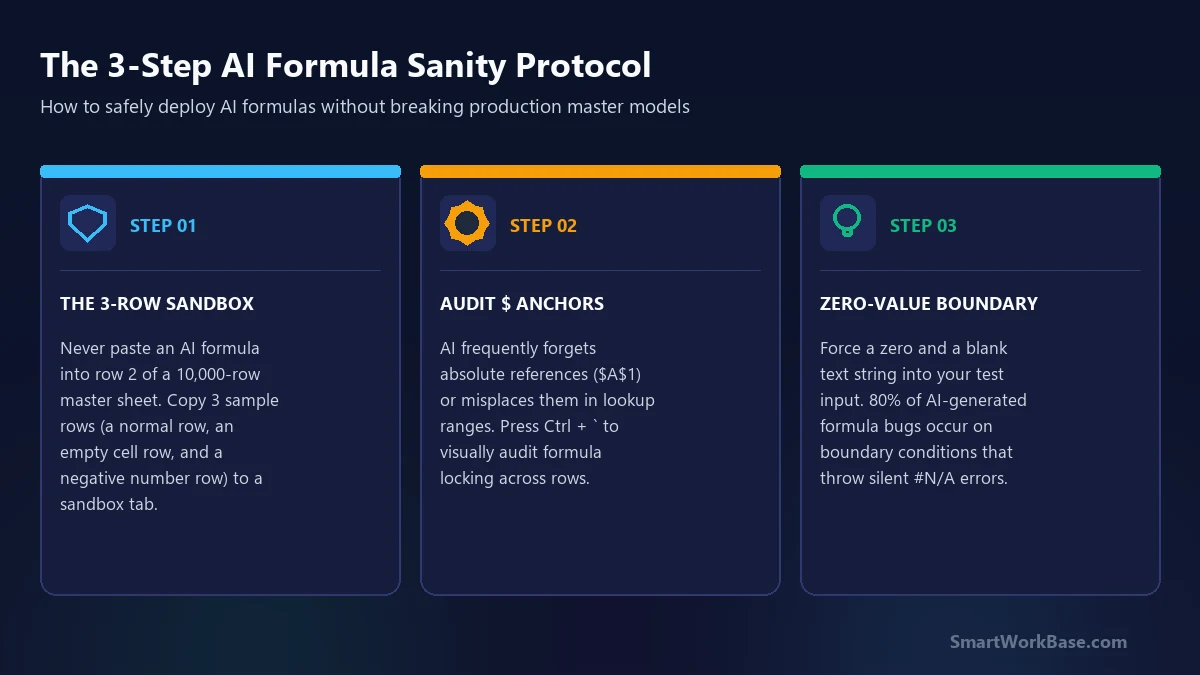
Step 1: The 3-Row Sandbox Tab
Never paste an AI-generated formula directly into row 2 of a 10,000-row master sheet. Create a temporary sandbox tab and copy three specific rows: 1) A typical standard row, 2) A row with blank or missing values, and 3) An edge-case row with zeroes or negative numbers. Test the formula in the sandbox first.
Step 2: The Formula Audit Mode (`Ctrl + ~`)
Press Ctrl + ` (or Ctrl + ~) to toggle formula view. Drag the formula down 5 rows and verify that every lookup table and range has the proper $ anchors locked in place.
Step 3: The Zero-Value Boundary Check
In Excel, a blank cell referenced by an arithmetic formula evaluates to zero. If an AI formula does not wrap lookups in an IF(ISBLANK()) or IFERROR() condition, blank entries will return misleading zeroes instead of clean blanks. Force a test blank to verify clean reporting.
The practical takeaway for spreadsheet power users
As documented in our 14-day AI time tracking audit, debugging bad AI output takes twice as long as writing clean formulas from scratch. Use AI as a high-speed syntax reference, but maintain rigorous human control over your workbook structure.
To choose the right assistant for your specific office workflow, explore our interactive Which AI Tool Should I Use? decision tree or grab tested prompts from our Free AI Prompt Cheat Sheet.
Frequently Asked Questions (FAQ)
Which AI model writes the most accurate Excel formulas?
Can AI create entire Excel dashboard macros safely?
On Error Resume Next) which can freeze your Excel application if a sheet name changes.
Is it safe to paste company spreadsheet data into ChatGPT?
Stop Writing Excel Formulas! 5 Best AI Tools to Automate Spreadsheets in 2026 →
5 AI spreadsheet tools tested across 140+ datasets: Formula Bot, Rows, Julius AI, and GPT-4o ranked.