Alt + Q instant screen lasso, direct Windows Explorer file integration, and a visual step-by-step preview mode that prevents panic, here are the four native features that turned an experimental AI browser into a daily desktop staple.Let’s take a break from the doom-and-gloom operational post-mortems.
Yes, autonomous AI agents can be fragile when pushed too far. We’ve spent plenty of time auditing the hidden supervision costs of agentic browsing and establishing strict guardrails. But when you use Aside on Windows for everyday clerical chores, something rare happens: desktop work feels effortless again.
For years, running a web automation bot on Windows meant watching your mouse cursor twitch erratically across the screen while you sat with your hands off the keyboard, terrified to touch anything. Aside throws that entire archaic model out the window. Here are the four native features that make it a genuine pleasure to run on a PC.
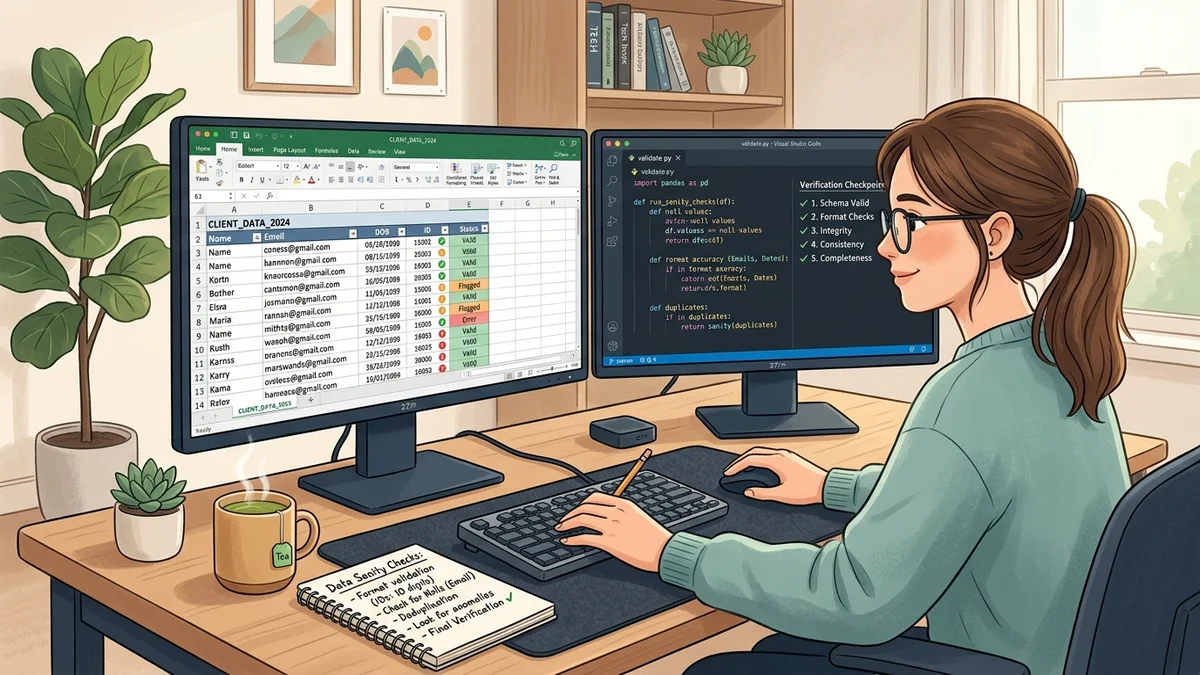
1. Zero mouse hijacking: true background multitasking
If you’ve ever experimented with legacy desktop RPA tools like Selenium or basic macro recorders, you know the frustration. The moment a script fires up, it seizes control of your cursor. You can’t write an email. You can’t touch Excel. You just sit there staring at your screen like a hostage.
Aside operates entirely inside its own Chromium process tree. When you tell it to log into three supplier portals and cross-check order numbers, you snap the window to your secondary monitor using Win + Right Arrow and go right back to work on your primary display.
You can type in Slack, crunch numbers in master spreadsheets, or sip your morning tea. Aside clicks buttons, moves through table pages, and gathers data in the background. It doesn’t steal focus. It doesn’t disrupt your typing. You glance over, see the progress bar tick forward, and let it do its job.
2. The Alt + Q Screen Lasso: killing the screenshot treadmill
Think about what you usually do when you hit an uncopyable data table, a strange ERP status icon, or a messy chart on an intranet webpage:
- Press
Win + Shift + Sto open the Windows Snipping Tool. - Drag a box to take a screenshot.
- Save the PNG file to your cluttered desktop.
- Open a new browser tab and head over to ChatGPT or Claude.
- Drag and drop the image into the chat window.
- Wait for it to upload, then type: “What does this error code mean?”
That treadmill burns 45 seconds of cognitive flow every single time. It’s exhausting.
In Aside, you simply tap Alt + Q. A minimal crosshair appears instantly over your active tab. You drag a tight box around the confusing table or error code, type your question into the inline prompt pill, and press Enter. The answer renders in a discreet side-tray in under four seconds. You never leave the page. Your desktop doesn’t get littered with temporary image files. It’s fast, fluid, and wonderfully addictive.
3. Direct Windows Explorer & Downloads folder integration
Web-based AI tools live in an isolated cloud sandbox. They have no idea what’s sitting on your hard drive. If you download five PDF invoices from a vendor portal, you have to manually hunt them down in your Downloads folder and upload them one by one to an external AI service.
Aside Windows bridges that gap through its native Guard Mode local filesystem bridge. Because it runs locally on your PC with designated directory permissions, it can actively monitor your local folders.
You can give it an instruction like: “Download the last 5 shipping manifests from this portal, extract the container numbers and billing totals, and append them into a new Excel file on my desktop.” Aside downloads the files, parses them locally, and generates container_summary.xlsx directly in your designated local directory. Your private invoice data never touches an external server. It’s clean, private, and instantaneous.
4. The Purple Highlight Mode: visual confidence, zero panic
The single biggest hurdle for people new to AI agents is anxiety: “What if this bot clicks the wrong button and deletes something important?”
Aside solves this with its visual Step-by-Step Preview Mode. Before the agent commits an action on a webpage, it outlines the target button or input field in a distinct purple highlight box and pauses.
You see exactly where it intends to click: “Clicking ‘Export CSV’ on row 14.” You tap Enter on your keyboard to approve, and it executes. Once you’ve watched it succeed three times and feel confident in its accuracy, you tap the “Run Autonomously” toggle and let it fly. That simple visual feedback loop replaces blind panic with total operational trust.
• Alt + Space : Summon Aside Command Bar from any Windows app
• Win + Arrow Keys : Snap Aside to secondary monitor for background processing
• Spacebar (in Step): Confirm highlighted purple action and advance
• Esc (Emergency) : Hard-stop agent execution in under 200 milliseconds
How to maximize the $0 Free Tier (500 monthly credits)
You don’t need a $20 monthly subscription to get tremendous mileage out of Aside. The free tier gives you 500 credits each month and up to 3 active scheduled routines. Here is how I allocate that budget without spending a penny:
| Weekly Routine | Frequency | Monthly Credit Cost | Time Saved |
|---|---|---|---|
| Monday Morning Carrier Fuel Surcharge Scrape | 4x / month | ~60 credits | 80 minutes |
| Midweek Competitor Flagship Price Audit | 4x / month | ~90 credits | 110 minutes |
| Ad-hoc Alt + Q Screen Lassos & Error Lookups | ~25 queries | ~125 credits | 75 minutes |
| Monthly Total | Active Routine Set | 275 / 500 Credits (55% budget) | 4.4 Hours Saved ($0 Spent) |
You finish the month with over 200 credits to spare. No recurring credit card charges. No complex API bills. Just reliable desktop help when you need it.
The bottom line: automation doesn’t have to be intimidating
Too much AI writing treats autonomous agents like an all-or-nothing proposition: either you hand over your entire job to an autonomous brain, or you do everything by hand in notepad.
Aside on Windows proves there is a much better middle path. When you combine smart keyboard shortcuts, background tab execution, and local file access, automation stops feeling like an academic experiment and starts feeling like what personal computing was always meant to be: fast, responsive, and genuinely helpful.